
DobroDesk Help Center
Configure CSP for the DobroDesk website widget
Allow the DobroDesk widget through an existing Content Security Policy without weakening unrelated website security or replacing the site's current policy.
What you'll achieve
A website administrator has the exact DobroDesk sources to add to the existing policy and a safe way to verify the change.
Check whether you need this guide
Content Security Policy, usually shortened to CSP, is an advanced website security setting that limits which external services a page may load. Most website owners do not need to change it. Use this guide only when your website administrator confirms CSP is enabled or the browser reports that content from dobrodesk.com was blocked.
If you manage content but do not manage website security headers, copy the installation instructions from DobroDesk and send them to the person, agency or hosting provider responsible for the site. Do not replace or remove the existing policy to make the widget work.
A CSP error is different from a Website addresses error. CSP is controlled by the website. Website addresses is the trusted site list saved in DobroDesk.
Copy the required DobroDesk sources
Open DobroDesk Admin, select Channels and open Website widgets.
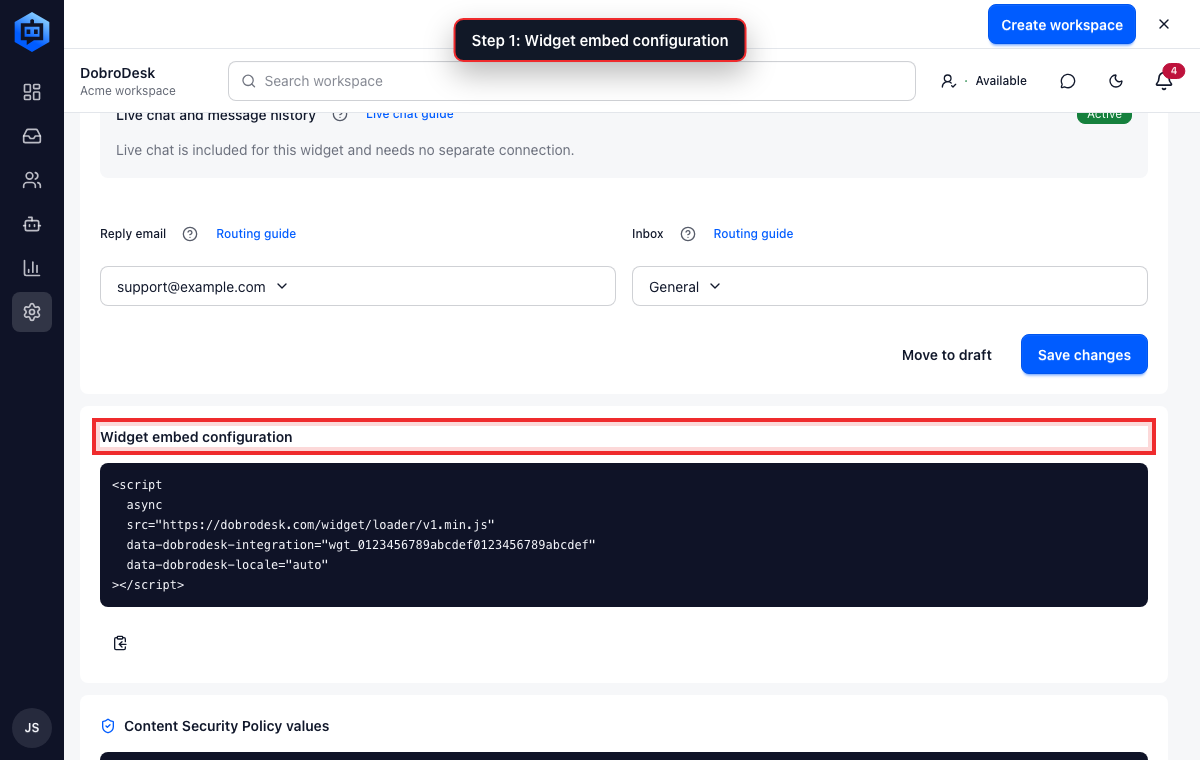
The red outline shows the control or area used in this step. Select the widget from the list, find Widget embed configuration and scroll to Content Security Policy values.
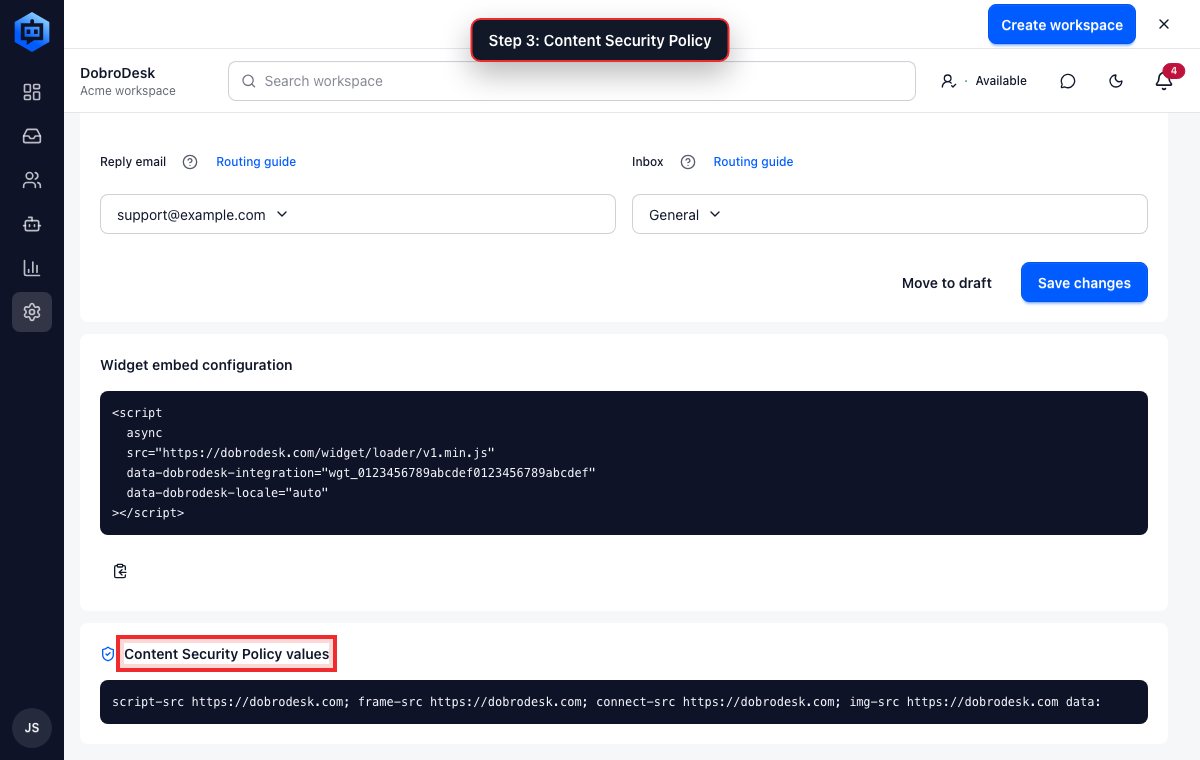
The red outline shows the control or area used in this step. Copy the displayed values together with the widget code. Send both blocks and the public page URL to the website administrator.
The red outline shows the control or area used in this step.
- script-src allows the DobroDesk loader script.
- frame-src allows the hosted widget interface.
- connect-src allows the widget to request configuration and send messages.
- img-src allows DobroDesk-hosted images and data images used by the interface.
Add the sources to the existing policy
The website administrator should merge https://dobrodesk.com into the matching directives already used by the site. They should preserve every existing trusted source and add DobroDesk to the same directive instead of publishing a second conflicting policy.
Locate where the current policy is managed. It may be an HTTP response header, hosting security setting, reverse proxy rule or HTML meta tag.
Add the DobroDesk source to each matching directive shown in Admin. Keep the site's existing sources unchanged.
Publish the security configuration through the website's normal release process.
Clear any edge, hosting or website cache that stores response headers.
Do not add unsafe-inline, a broad wildcard or a rule that allows every website. Those changes affect the whole site and are not required by the DobroDesk values shown in Admin.
Verify the policy on the public website
Open the real public page in a new private window. Do not rely only on a website builder preview.

The red outline shows the control or area used in this step. Confirm the Support button appears and the widget opens.
Send a test message and confirm it reaches the selected DobroDesk Inbox. A visible button alone does not prove that network requests are allowed.
If the widget is still blocked, copy the exact CSP error from the browser console and give it to the website administrator. The directive named in the error shows which source is still missing.
Avoid common CSP mistakes
- Do not delete the existing policy or switch it off for all visitors.
- Do not paste CSP text into the widget code field. The policy belongs in the website security configuration.
- Do not change only script-src. The widget may appear but fail to open or send if frame-src or connect-src is still blocked.
- Do not test only while signed in to the website admin area. Use the public URL in a private window.
- Do not confuse a www or staging Website addresses mismatch with CSP. Check both settings when the domain changed.