
DobroDesk Help Center
Test the website widget before launch
Run a complete customer-to-Inbox test before launch and confirm the Support button, public answers, message delivery and team reply all work.
What you'll achieve
You know the widget works on the public website and your team can receive and answer a customer's message from start to finish.
Prepare a clean test
Test the public website, not only the website builder preview. A private or incognito window behaves more like a new visitor and avoids old login sessions, cached files and earlier widget conversations hiding a setup problem.
Open the widget in DobroDesk and confirm its status is Active.
Confirm the exact public website address appears under Website addresses.
Publish the website change and clear the website or hosting cache if one is available.
Prepare an email address you can open and tell the teammate monitoring the destination Inbox that a test is coming.
Check what a new visitor sees
Open the website home page in a private window. Confirm the Support button appears in the expected bottom corner without covering an important purchase, consent or navigation control.
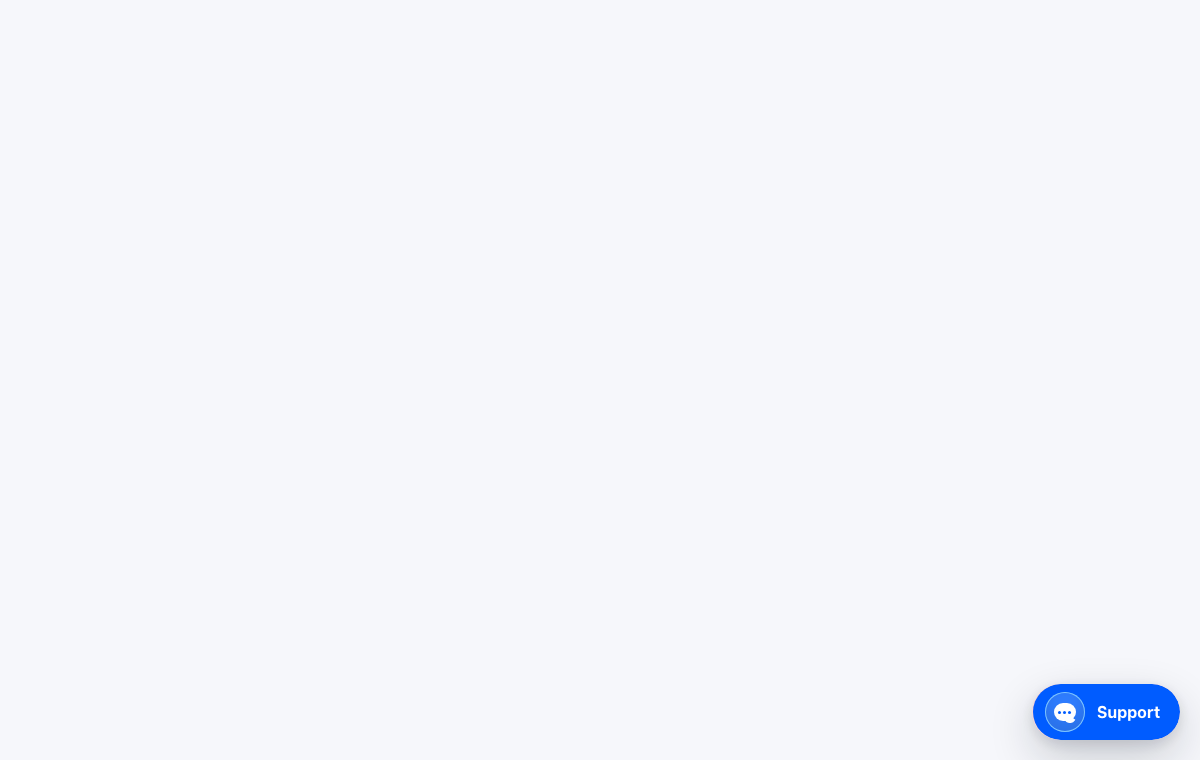
The red outline shows the control or area used in this step. Open a second public page. The same button should appear there if the code was installed site-wide.
The red outline shows the control or area used in this step. Select the button and check the public support name, availability message and expected reply time.
Open each suggested answer and verify that it is current, complete and safe for any customer to read.
Send a recognizable test message
Select Contact support and enter the test email address.
Write a unique message such as Website launch test - July 12 at 10:30. A unique phrase is easier to find than Hello or Test.
Send the message once and keep the private browser window open.
Check that the widget confirms the message instead of leaving the form in an error state.
Verify the complete reply path
Open the Inbox selected in the widget settings. Find the conversation using the unique phrase or test email address.
Check that the conversation shows the website widget as its Channel and contains the correct customer details.
Send a short public reply from DobroDesk. Use the normal reply action rather than an internal note.
Return to the same private browser window and confirm the reply appears in the conversation. If an email notification is sent, check that it uses the expected customer-facing mailbox.
Use this launch checklist
- The Support button appears on the home page and at least one other public page.
- The button does not hide an important mobile or desktop control.
- The public name and reply expectation are accurate.
- Every suggested answer is approved and current.
- A new message reaches the intended Inbox with the correct Channel.
- A teammate can reply and the customer sees that reply in the widget.
- The visible email sender is the mailbox customers should recognize.
If any check fails, pause the launch and use the troubleshooting guide. Record the public page URL, Integration ID, test time and exact behavior so the issue can be reproduced.