
DobroDesk Help Center
Add allowed domains for the website widget
Enter the correct website addresses in DobroDesk so the support widget loads on trusted production and staging websites.
What you'll achieve
The widget works on the websites you approve and cannot be copied to an unrelated website without permission.
What an allowed domain means
Website addresses is the field where you list the sites that may show your widget. Enter the beginning of each address: https:// plus the domain name. Do not include a page name, slash or path after it.
- Use https://example.com for a website without www.
- Use https://www.example.com for a website with www.
- Add both addresses on separate lines if visitors can use both versions.
- Add a staging website separately, for example https://staging.example.com.
- Do not enter https://example.com/contact because /contact is a page, not a website origin.
www.example.com and example.com are different addresses for this security check. Add the version people actually see in the browser after the page finishes loading.
Find the correct website address
Open the public website in your browser and wait for the page to finish loading.
Select the address bar and copy only https:// plus the domain name. Stop before the first slash after the domain.
Repeat this for each production or staging website that should show the widget.
Add the addresses in DobroDesk
Open Admin > Channels > Website widgets and select the widget you want to update.
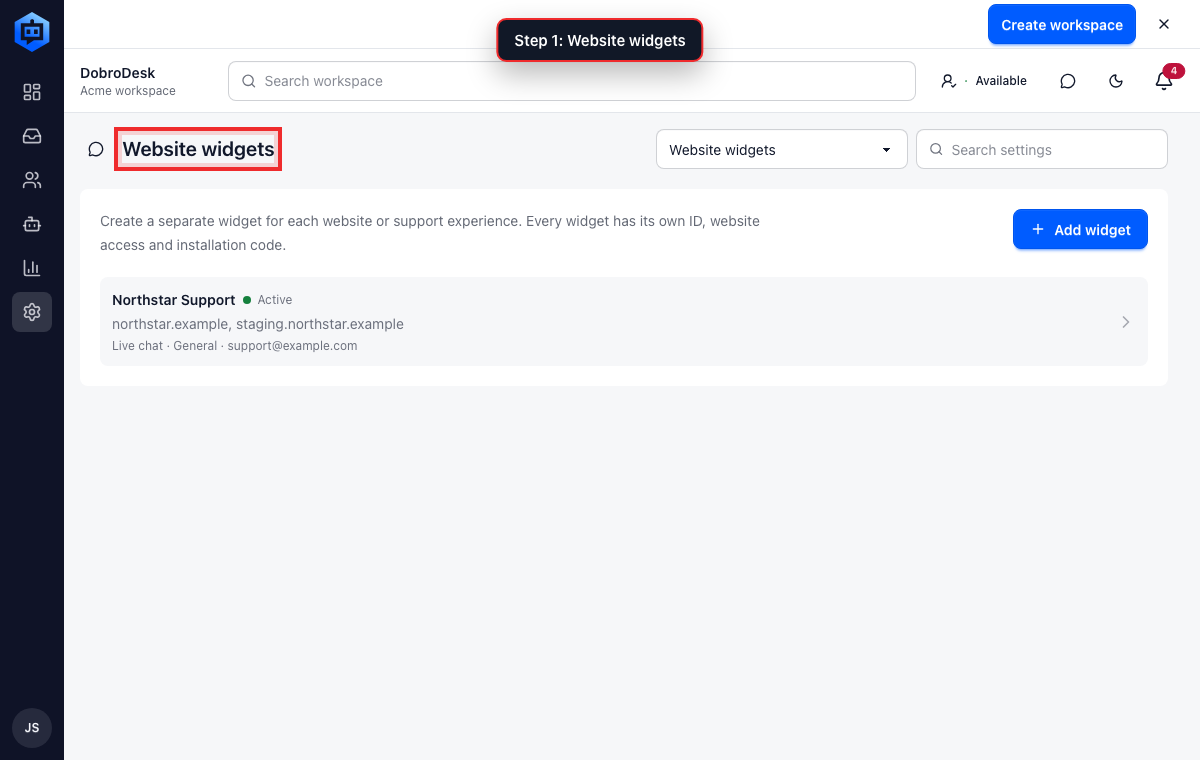
The red outline shows the control or area used in this step. Under Website addresses paste one complete website address on each line.
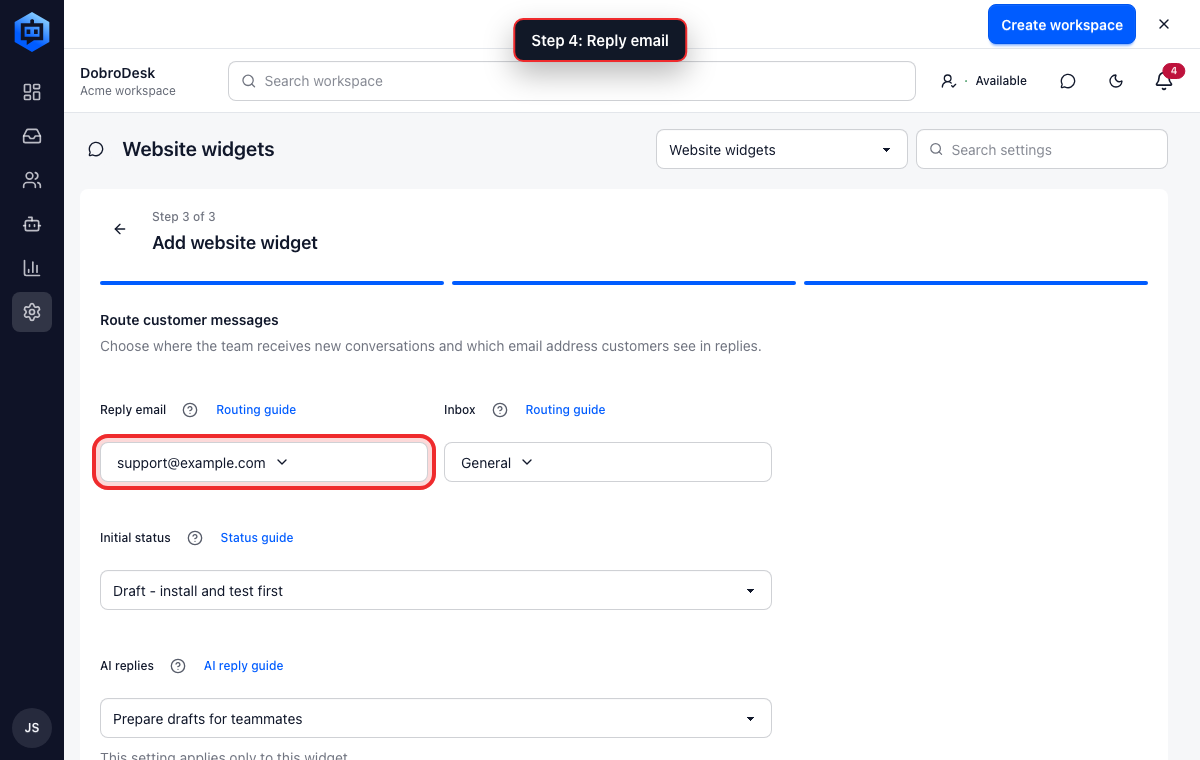
The red outline shows the control or area used in this step. Select Save changes.
The red outline shows the control or area used in this step. Return to the widget list and confirm the expected website appears under the widget name.
The red outline shows the control or area used in this step.
Common address mistakes
- Missing https:// at the beginning.
- Adding a page path such as /shop or /contact.
- Adding only the non-www address when the website redirects visitors to www.
- Forgetting the separate staging or preview domain used for testing.
- Copying the address from the website admin page instead of the public website.
When to update the allowed website list
Review this list whenever the public website address changes. A redesign on the same domain does not need a new entry, but moving from a temporary domain to the final domain does.
- Add a new production domain before switching customers to it, then test the widget on that address.
- Remove an old preview or staging domain when your team no longer uses it.
- Do not use a wildcard such as *.example.com. Add only the specific subdomains that should show support.
- Create a separate widget when another website needs a different support name, reply email or destination Inbox.
- After every change, open the real public page in a private window and confirm the Support button still appears.